How to Build Custom Menus in Nuke
Add custom menus and node toolbar icons to Nuke with a few lines of Python. A beginner-friendly menu.py walkthrough.
If you've ever worked at a studio with a professionally-engineered pipeline, you've probably seen it: custom menus in the menu bar, custom node buttons in the toolbar, all sitting there like they shipped with Nuke.
Here's the good news. You don't need to be a pipeline TD to do this. You just need a few of lines of Python and an understanding of how Nuke loads scripts when it starts up.
Note: This free module is from Simon Jokuschies’ 6-hour course, Python and AI Integration for Nuke (available only at the ActionVFX Academy). We'll keep things simple here, but if you want to fully understand what's happening, you should take the full course.
Watch the free module:
1. init.py and menu.py
Before you build anything, you need to know about init.py and menu.py.
These are just plain text files with a .py extension. Nothing fancy. What makes them special is that Nuke looks for them every time it launches, and if it finds them, it automatically runs whatever code is inside.
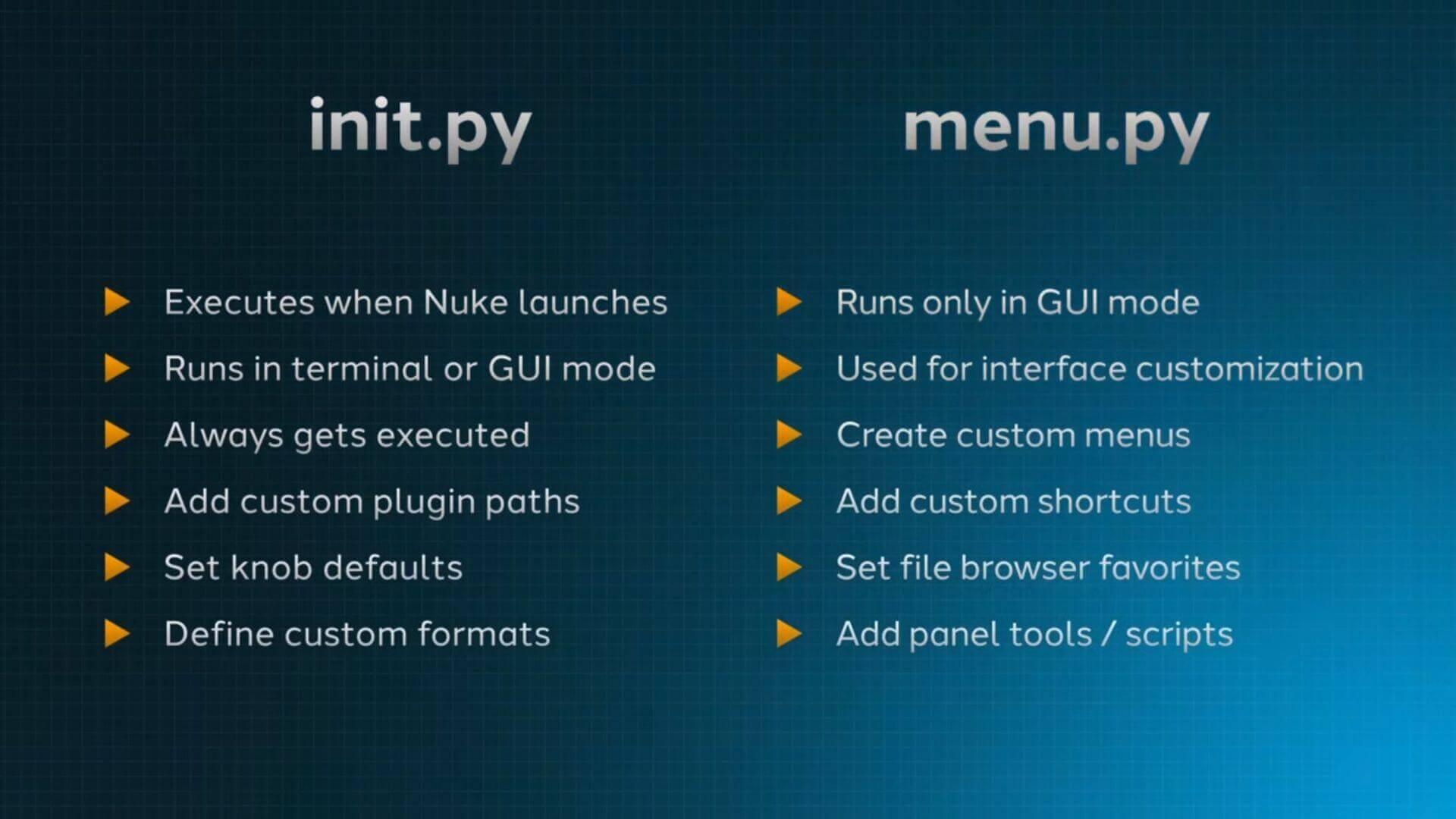
The difference between the two comes down to when they run:
- init.py runs every time Nuke starts. That includes terminal sessions and render farms, when there's no interface.
- menu.py only runs when Nuke opens with its interface (the normal way you launch Nuke).
This matters because some things, like knob defaults, need to apply even on a render farm. Those belong in init.py. Other things, like menus and keyboard shortcuts, only make sense when there's an interface on screen. Those belong in menu.py.
In this tutorial, Simon focuses on menu.py since we’re only building interface tools.
2. init.py and menu.py Plugin Paths
Nuke keeps a list of folders it scans at startup, called the plugin path. Any init.py or menu.py sitting in one of those folders gets executed.
You can see your plugin path from the Script Editor inside Nuke. Run this to print each folder on its own line:
or path in nuke.pluginPath():
    print(path)
Most of the folders in that list belong to Nuke itself, but the .nuke folder belongs to you and always loads on startup. On the printout, it will look something like:
/Users/yourname/.nuke
When you create a file called menu.py inside that folder, any code you put in it will run the next time you launch Nuke.
3. Build Your First Custom Menu in Nuke
Time for the fun part. Back in the Script Editor, run this line:
menu = nuke.menu("Nuke").addMenu("Custom")
That line says, “Hey Nuke, find the top menu bar (Foundry calls it “Nuke”), add a menu labeled “Custom,” and remember it under the name “menu” so I can keep working with it.
Look up at your menu bar. There's a new menu called Custom sitting right there next to Render and Viewer. That's yours.
Right now your menu is empty, so let's give it something to do:
menu.addCommand("Hello", "print('hello')")
Now, when you select the Custom menu and click Hello, the word hello prints in your Script Editor output.
Important note: Empty menus sometimes don't show up in Nuke's menu bar. If you create a menu and can't see it, don't panic. Add a command to it and it should appear.
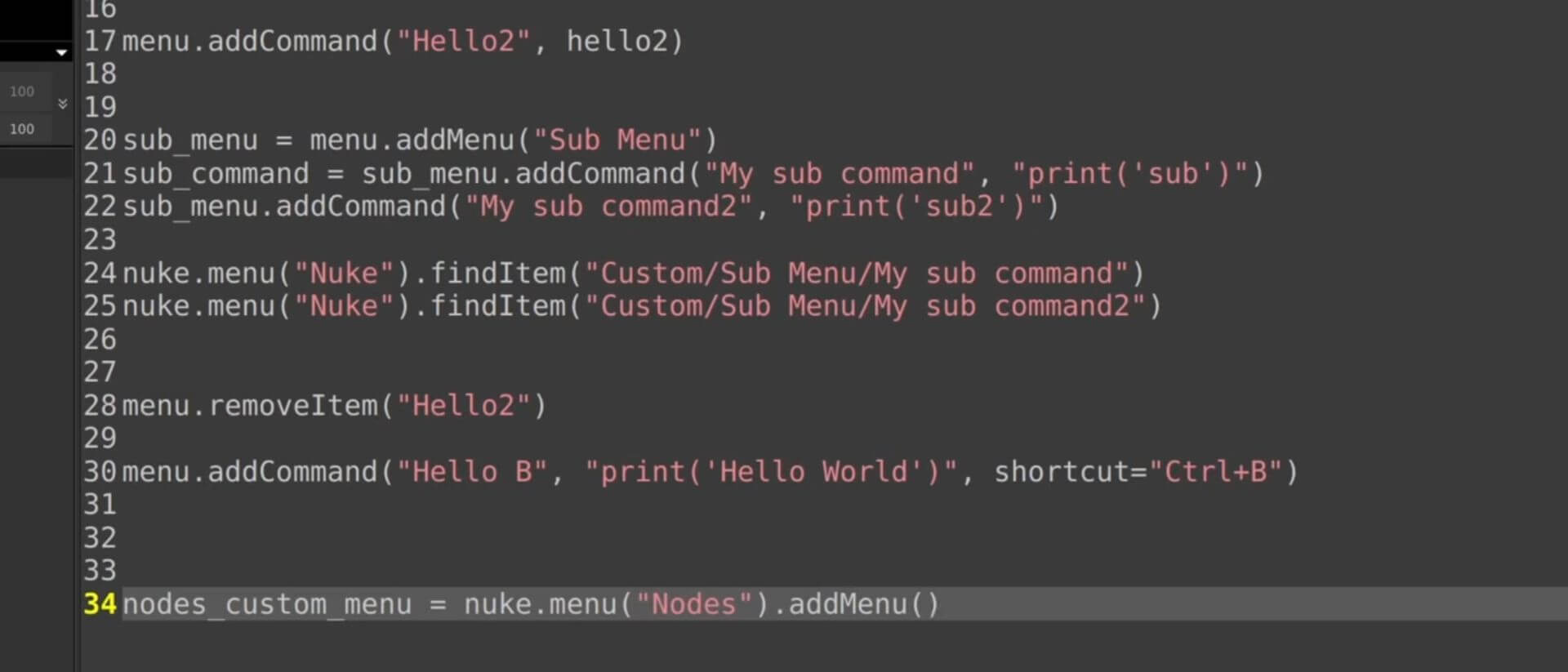
You can also add sub-commands and custom shortcuts in this menu. You'll learn how to do that in the full tutorial.
4. Add Custom Node Menus to the Nodes Toolbar
The same approach works to add nodes to your node toolbar. The only change is the name you pass to nuke.menu():
nodes_menu = nuke.menu("Nodes").addMenu("Custom Nodes", icon="star.png")
Notice the icon part. Drop a PNG called star.png into your .nuke folder, and Nuke finds it by name automatically.
Now make it create a node:
nodes_menu.addCommand("Custom Blur", "nuke.createNode('Blur')")
Click it, and a Blur node lands in your node graph. If you swap the Blur for your own gizmos and presets, they'll load from the toolbar like any native node.
In later modules of Python & AI Integration for Nuke, you'll build full custom gizmos and panels. This menu setup is how they end up in your toolbar.
Dig Deeper: Learn Python from Scratch
Python & AI Integration for Nuke is a self-paced course intended for professional compositors with little to no coding experience. If you’re just wanting to become a faster or more highly skilled compositor who can build your own custom tools, this is a great course for you.
Buy Python & AI Integration for Nuke
New to ActionVFX?
At ActionVFX, we make assets, tools, and educational resources for professional VFX artists.